Create a report
Expense reports allow you to group multiple expenses together and submit them for approval.
You can either save a report as a draft and complete it later, or submit it directly for approval when it is ready.
Create an Expense Report
To create an expense report:
Click on the Create Report button.
Enter the Report Name, if required.
Add a Description, if required.
Complete any additional fields configured by your organisation.
Select the expenses you want to include in the report.
Choose one of the available options:
Save as Draft — Save the report and complete or edit it later.
Submit Report — Create and submit the report for approval.
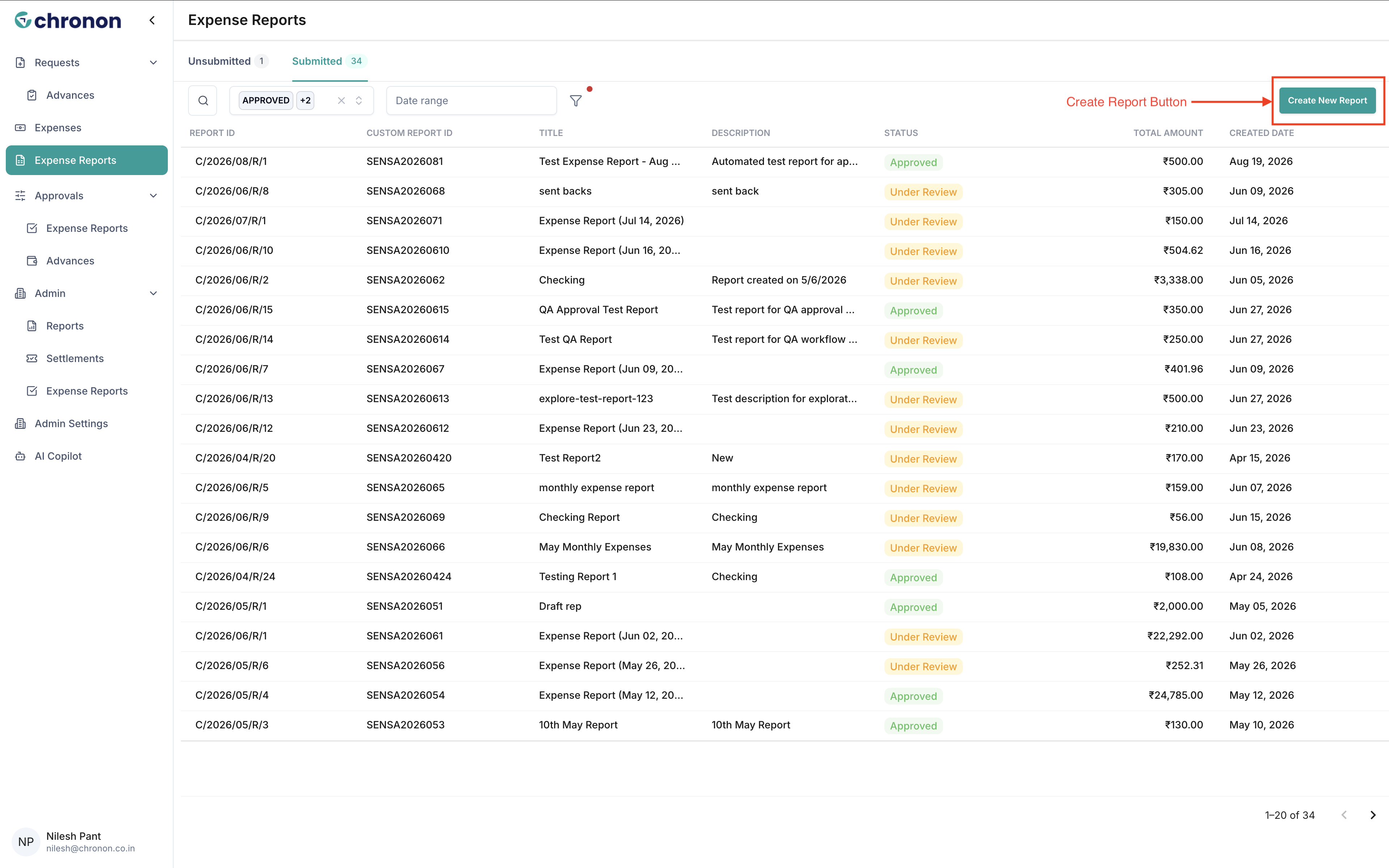
You can select multiple eligible expenses and attach them to the same report.
Additional Information
Your organisation may configure additional fields that need to be completed when creating a report.
These fields can be:
Mandatory — You must provide the required information before saving or submitting the report.
Optional — You can leave the field blank if it is not relevant.
The available fields depend on your organisation's configuration.
Attach Expenses to a Report
You can select multiple eligible expenses and attach them to your report.
To add expenses:
Select the expenses you want to include.
Review the selected expenses.
Continue with Save as Draft or Submit Report.
Only expenses that are eligible for reporting can be selected.
Review the selected expenses carefully to make sure the report contains all the expenses you want to submit.
Save as Draft
Use Save as Draft when you are not ready to submit the report.
When you save a report as a draft:
The report is saved without being submitted for approval.
You can edit the report later.
You can update the report details.
You can add or remove eligible expenses.
You can complete any missing information before submitting.
A draft report is not sent to an approver until you submit it.
Submit the Report
Use Submit Report when the report is complete and ready for approval.
When you submit a report:
The report is created and submitted for approval.
The report enters the approval process.
The report can no longer be edited.
The attached expenses become part of the submitted report.
Before submitting, make sure all report details and attached expenses are correct.
Important: Once a report is submitted for approval, you cannot edit it. Review the report carefully before selecting Submit Report.
Before You Submit
Before submitting your report, check:
Report name and description
Required additional fields
Selected expenses
Expense details and amounts
Any other information required by your organization
If you are not ready to submit, select Save as Draft instead. You can return to the draft and make changes later.
Save as Draft vs. Submit Report
Action | Result | Can Edit Later? |
|---|---|---|
Save as Draft | Saves the report without submitting it for approval | Yes |
Submit Report | Creates and submits the report for approval | No |
Tip: Use Save as Draft if you still need to review or update the report. Use Submit Report only when the report and all attached expenses are ready for approval.