Add attachment to an expense
Attachments allow you to provide supporting documents relevant to your expense, and you can remove any attachment that is no longer needed before submitting your claim.
You can add multiple attachments to any expense claim, whether it is receipt-based, mileage-based, or per diem-based.
Add Attachments
To add attachments to an expense claim:
Open the expense claim form.
Click Add Attachment button.
Select the files you want to attach from your device.
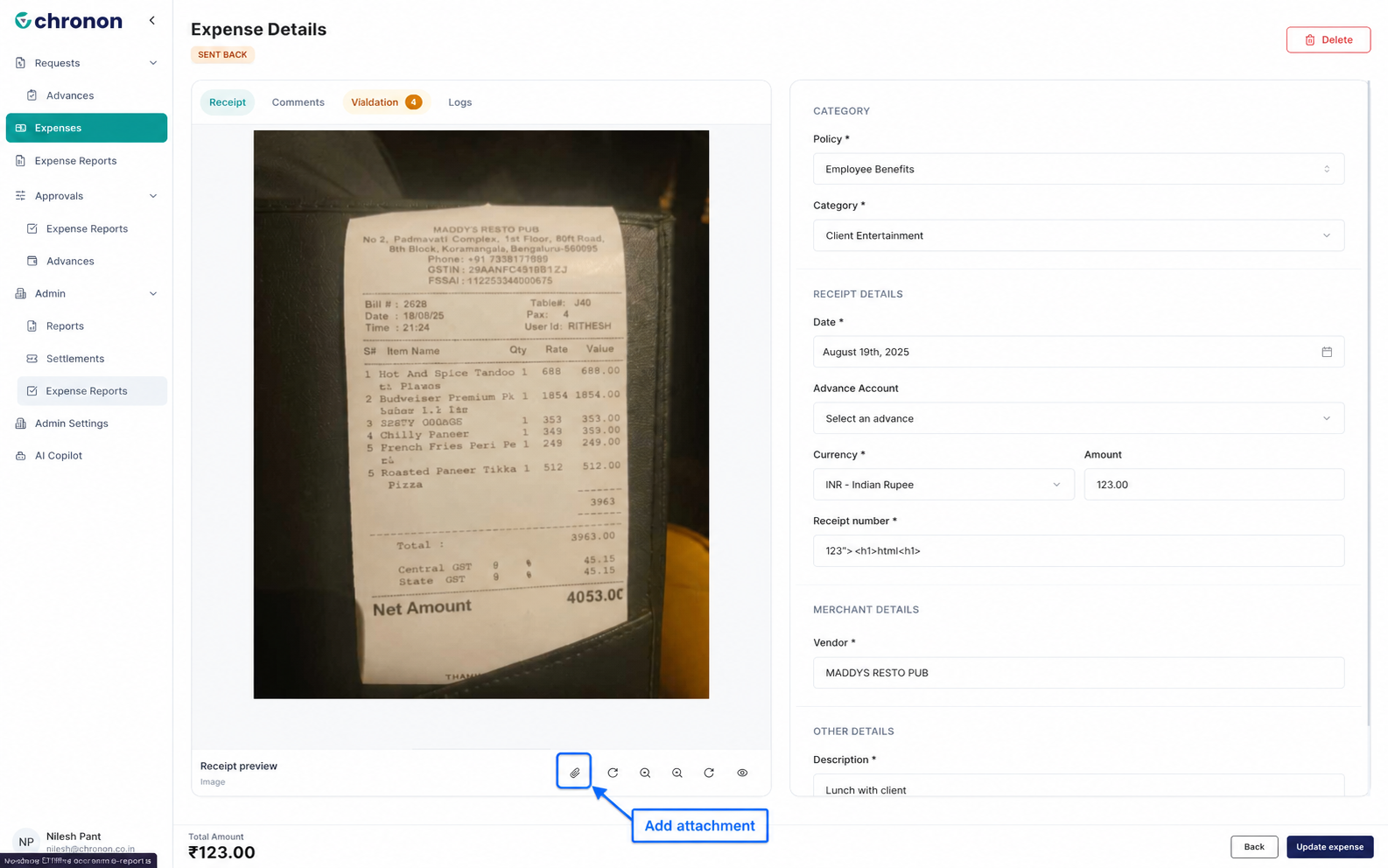
You can attach multiple files to a single expense claim.
View Attachments
Review the files attached to your expense in the Attachments section. Open an attachment by clicking on it.
Make sure your attachments are relevant to the expense and that the information is clear and readable.
Delete Attachments
If an attachment is incorrect or no longer required, you can remove it from the expense claim.
Locate the attachment you want to remove.
Click the Delete Attachment button below the file.
Confirm the action if prompted.
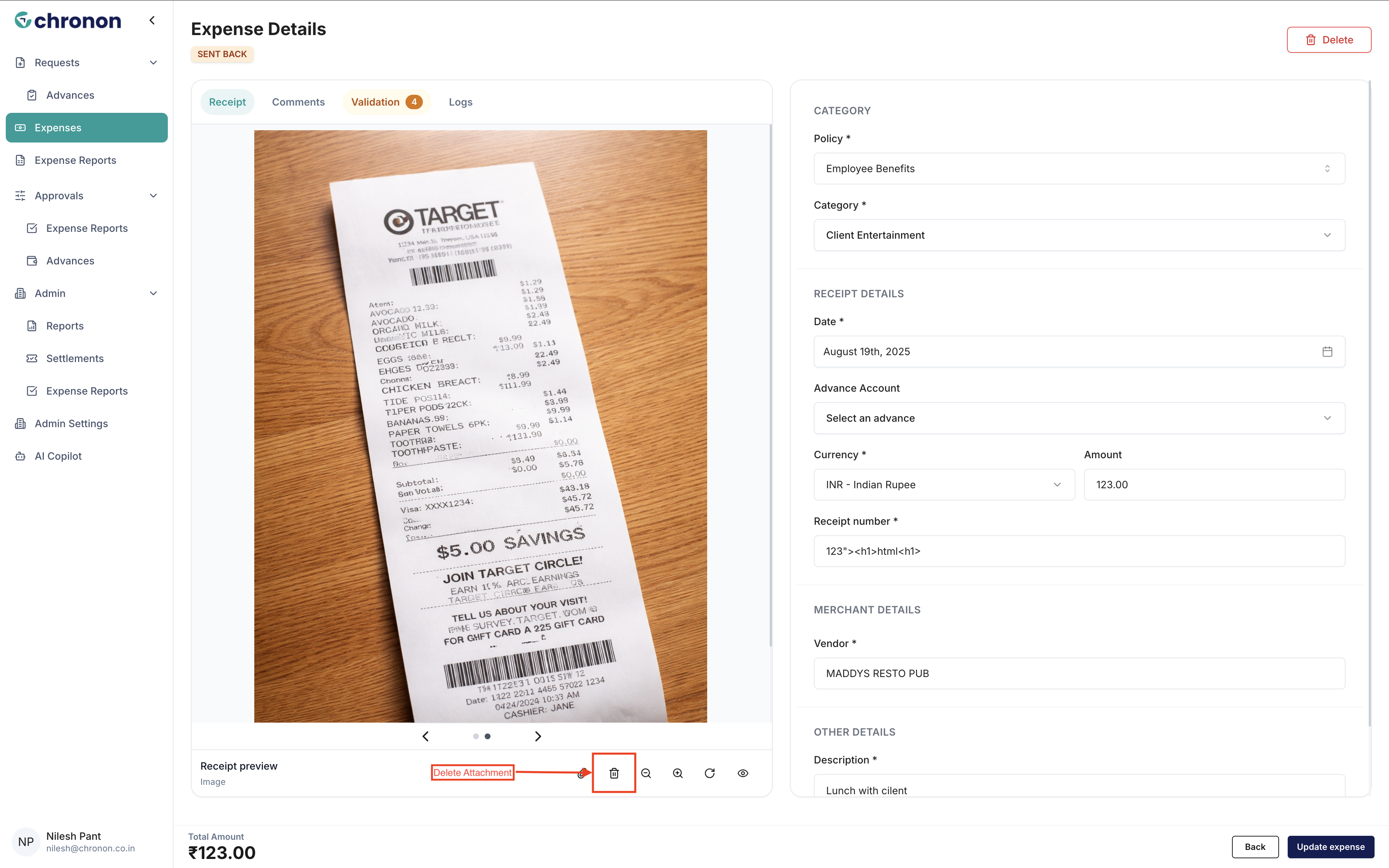
Only the selected attachment will be removed. Other attachments associated with the expense will remain unchanged.
Important Notes
You can add multiple attachments to receipt-based, mileage-based, and per diem-based claims.
Attachments can be used to provide supporting documents relevant to your expense.
Review your attachments before submitting the claim to ensure that all required documents are included.
Make sure you do not remove any documents required by your organization's expense policy.
Tip: Attach all relevant supporting documents before submitting your expense claim to help your organization review and process it efficiently.