Edit or delete an expense
You can edit or delete an expense when you need to correct its details or remove it from your expense records.
Editing and deleting are only available for expenses with a status of Complete or Incomplete or Sent back. Once an expense moves to another status, these actions may no longer be available.
Edit an Expense
You can edit an expense to correct or update its details.
To edit an expense:
Open the Expense you want to update.
Update the required expense details.
Review the changes.
Save the expense by clicking on Update expense button.
Depending on the type of expense, you may be able to update details such as:
Expense date
Receipt
Claim amount detail
Locations and stops for mileage claims
Vehicle and mileage category
Per diem dates, location, and category
Purpose
Additional information
Attachments
The available fields depend on the type of expense and your organization's configuration.
Delete an Expense
You can delete an expense if it is no longer required or was created by mistake.
To delete an expense:
Open the Expense you want to remove.
Click Delete.
Confirm the deletion if prompted.
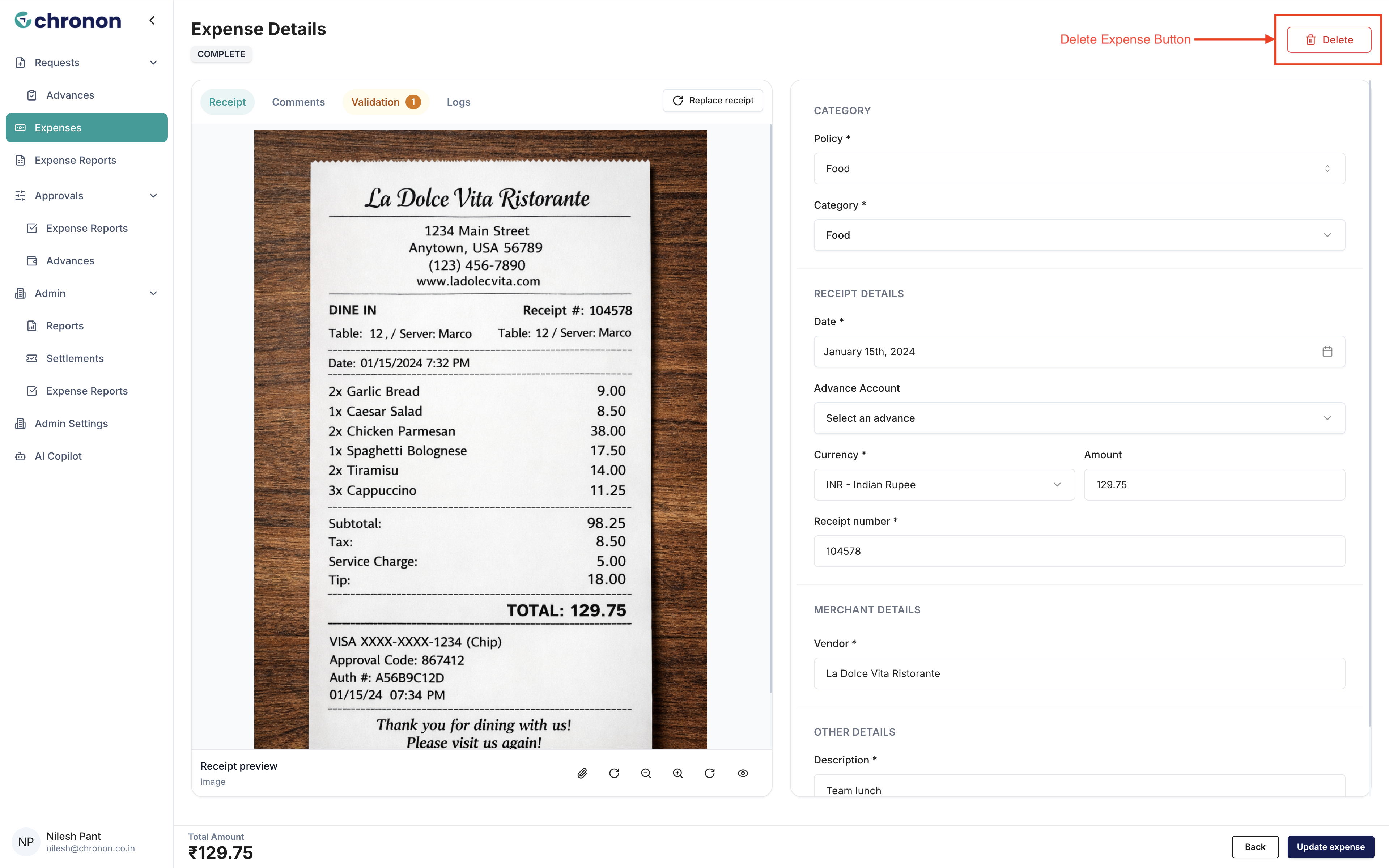
Deleting an expense removes it from your expense records. Review the expense carefully before confirming the deletion.
Expense Status and Available Actions
Editing and deleting are available only when the expense is in one of the following statuses:
Complete — You can edit or delete the expense.
Incomplete — You can edit or delete the expense.
Sent back — You can edit or delete the expense.
If the expense has moved to another status, the Edit and Delete options may not be available.
Tip: Review your expense details carefully before submitting or moving it to the next stage. If you need to make changes, do so while the expense is in Complete or Incomplete status.